Preview and check your PDF
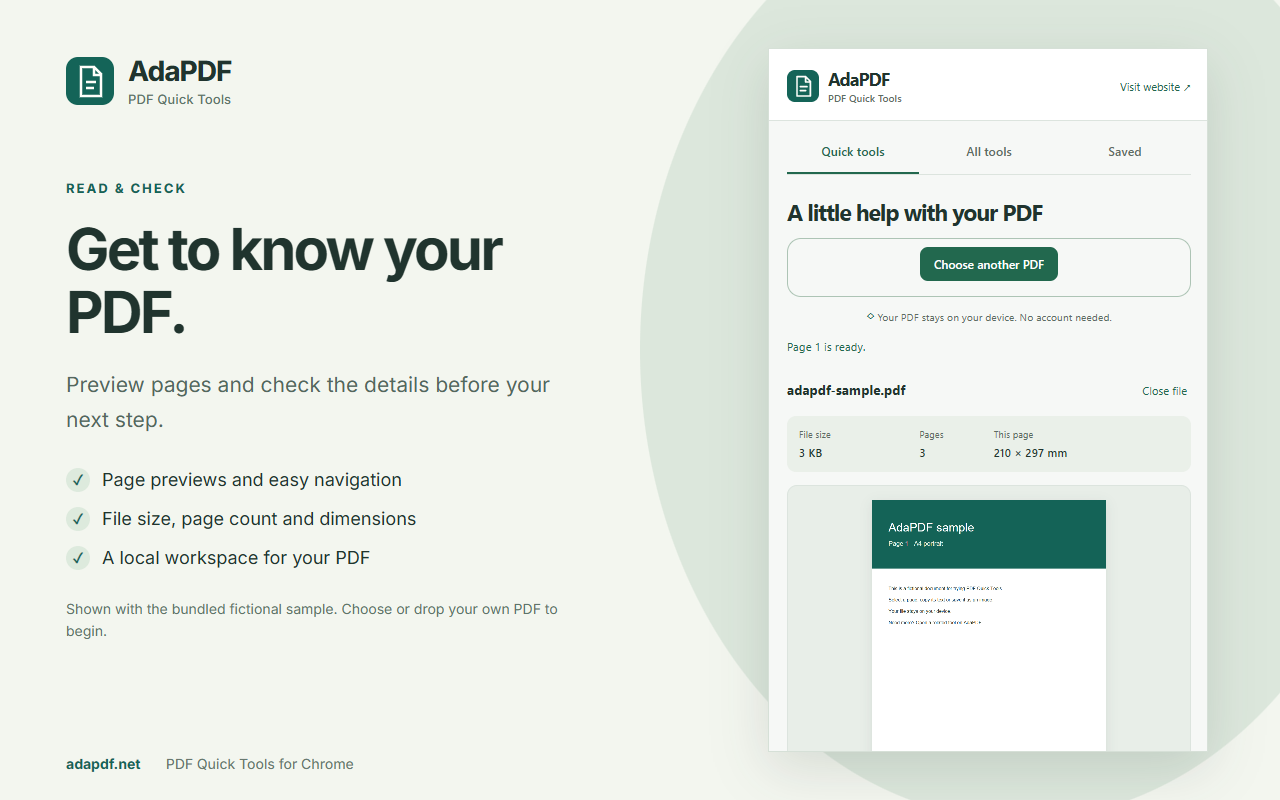
Move between pages and check file size, page count and page dimensions. If the PDF has an opening password, enter it to view the document.
A little help with your PDF, right beside your work.
The AdaPDF Chrome extension opens a side panel where you can preview a PDF, copy a page’s text, and save a page as a picture. Choose a file from your device and keep useful PDF tools close while you work.
For desktop Chrome 145 or newer. PDFs up to 100 MB and 1,000 pages. Text copying reads existing text; scanned pages need OCR on the website.
Install from the Chrome Web Store. No AdaPDF account required.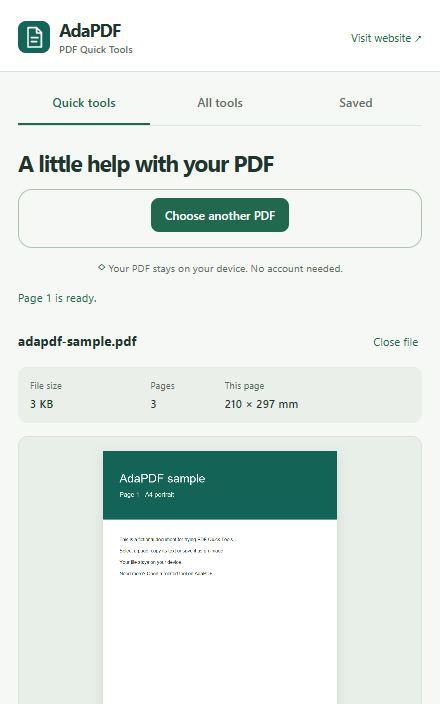
Move between pages and check file size, page count and page dimensions. If the PDF has an opening password, enter it to view the document.
Extract existing text from the selected page, review it and copy it. Reading order may need adjustment. For an image-only scan, use OCR PDF to recognize printed words.
Export one selected page as PNG or JPG at 72, 150 or 300 DPI. Images have a white background. Very large pages may use a lower resolution to fit the export limit.
These screenshots show the real extension working with its bundled fictional sample PDF. After installing, choose “Try a sample PDF” to explore before opening your own file.
Search website tools by task, save favorites and revisit recently opened tools in the side panel. Use Merge PDF to combine documents, Compress PDF to reduce an attachment, or Split PDF to keep selected pages.
These website tools open in a new tab. Your PDF is not transferred automatically: choose it again on the website. Each tool explains its input limits and expected result before you start.
The AdaPDF Chrome extension processes previews, text and page images locally. Documents and opening passwords are not uploaded. Its permissions let it open the side panel and remember favorite and recent tool types.
The extension has no analytics requests. Website visits use the site’s existing analytics. Read the extension privacy policy and website privacy policy for details.
Use the installation button in desktop Chrome 145 or newer. Review the listing and permissions, then choose “Add to Chrome” and confirm.
Open Chrome’s Extensions menu beside the address bar and pin AdaPDF — PDF Quick Tools.
Click the AdaPDF toolbar icon to open the side panel. Choose “Try a sample PDF”, select a PDF, or drop one into the panel.
This extension is for desktop Chrome. On your phone, use the AdaPDF PDF converter and tools directly in your browser.
No. Choose or drop the file into the side panel. The extension does not automatically read your browser tabs or transfer a document from a website.
The panel previews PDFs, copies page text and exports page images. Merging, compression, editing and other tasks open the corresponding AdaPDF website tool in a new tab, where you select the file again.
Chrome checks for updates to extensions installed from the store. To remove AdaPDF, open Chrome’s Extensions menu, choose “Manage extensions”, find AdaPDF — PDF Quick Tools and select “Remove”.
Check that you are using a supported desktop Chrome version. A work or school administrator may control extension installation. You can still use the online PDF tools in your browser.
Need help? Email support@AdaPDF.net with what happened. See our terms of use.