Free PDF converter & tools
on your device.
Convert, merge, compress or sign. Choose a tool and get your file ready.
Choose a free PDF converter for documents or photos, or merge, compress and sign a PDF. Preview and save your result on your device.
Drop your files.
Find your next step.
We’ll suggest a tool that fits.
PDF, Office files, TXT, JPG, PNG, WebP, JFIF, HEIC & TIFF
Up to 30 files. PDFs: 150 MB total to merge, 80 MB to compress, 200 MB to split.
Other files: 50 MB total; DOCX/PPTX: 20 MB each. Check the selected tool’s page and format limits.
Find the PDF tools you need
Start with a common task, or search the full toolkit.Made for the everyday. Ready for whatever’s next.
Find a PDF converter for your next task
Choose your free online PDF tool
Browse all 47 PDF tools by task
Convert to PDF11
Choose a PDF converter for DOCX, XLSX, PPTX or images. Check the supported format and preview before saving your printable copy.
ZIP to PDF
Choose PDFs and pictures from a ZIP and combine them.
Review the files inside your archive, select their order and save one PDF, or pack files into a ZIP.EPUB to PDF
Preview an EPUB book and print it as a PDF.
Read DRM-free, reflowable EPUB chapters and supported local pictures, then choose Save as PDF in your browser’s print dialog.JSON to PDF
Print JSON data as a readable PDF document.
Preview formatted keys and values, or reflow text exported by PDF to JSON, then save through your browser’s print dialog.Markdown to PDF
Print Markdown notes as a PDF with selectable text.
Paste Markdown or open a file, attach local pictures, check the preview, and use Save as PDF in your browser’s print dialog.Word to PDF
Turn a Word document into a PDF ready to share.
Preview selectable text, tables and links, then print to PDF. Check page breaks and fonts before saving.Excel to PDF
Share an Excel worksheet as a PDF that is easy to read.
Choose sheets and print areas, repeat heading rows and preview the page layout. Save as PDF through your browser; saved formula results are used.PowerPoint to PDF
Save PowerPoint slides, handouts and notes as a PDF.
Choose full slides, 2/4/6/9 slides per sheet or speaker notes. Review charts and fonts, then print to PDF.JPG to PDF
Put your photos in order in one PDF ready to send.
Combine JPG, PNG, WebP, JFIF and HEIC photos, choose a page layout, preview the order, and download one PDF.TXT to PDF
Turn plain notes into pages ready to print.
Paste text or open a TXT file, check its encoding and font, then print a PDF with selectable words.Scan to PDF
Capture paper pages, adjust them, and create one PDF.
Use your camera or photos, crop and arrange the pages, then download. Check edges yourself because correction is manual.HTML to PDF
Turn an HTML file or pasted HTML into a PDF.
Keep an article, notice, or newsletter as a PDF. Choose your page layout, check the result, and download a copy to print or share.Convert from PDF12
Use a PDF converter to reuse words, tables or page pictures. Editable output needs review; a scanned page may need OCR first.
PDF to Markdown
Turn PDF text into Markdown you can review and edit.
Choose pages and reading order, review suggested headings and lists, and save a Markdown file. Scans need OCR first.PDF to EPUB
Make a reflowable text ebook from PDF pages.
Extract selectable text into chapters with a table of contents. Images and the original page layout are not recreated.PDF to JSON
Save PDF text with page numbers and text block positions.
Review selected pages, suggested headings and reading order before downloading structured JSON. Scans need OCR first.Extract Images from PDF
Save embedded photos and logos at their own pixel size.
Choose pages and preview individual pictures. Keep supported JPEGs or save decoded PNGs, then download separately or in a ZIP.PDF to CSV
Preview PDF text in columns and save it as CSV.
Choose a table area, adjust columns and correct values before downloading. For scanned tables, recognize the words here with OCR and check every amount.PDF to Word
Reuse PDF words in an editable Word document.
Choose editable page objects or flowing text with OCR for scans. Review the downloaded DOCX for fonts, pictures and table cells.PDF to Excel
Move PDF text into Excel so you can organize it there.
Correct table cells, recognize scans, combine pages and define merged ranges before saving XLSX or CSV.PDF to PowerPoint
Put each PDF page on its own PowerPoint slide.
Choose separate editable text, pictures and supported shapes, or keep complete page images for presenting.PDF to JPG
Save each PDF page as an image for sharing or slides.
Choose pages and 72, 150 or 300 DPI. Download one JPG directly or several page images in a ZIP.PDF to PNG
Save selected PDF pages as clear PNG images.
Choose pages and resolution. Download a single PNG or a ZIP of several pages. Pages have a white background; this does not extract original embedded images.PDF to Text
Keep the words from a PDF and leave the page layout behind.
Choose pages and reading order, review the words, then copy or download TXT. Scanned pages need OCR first.OCR PDF
Search and copy the words in a scanned PDF.
Recognize printed text in 10 languages, review it, and download searchable PDF or TXT output.Organize PDF11
After using a PDF converter, assemble your attachment: combine files, extract a page range, remove blanks or put pages in order.
Repair PDF
Recover readable pages from a damaged PDF.
Try a repair, inspect the recovered pages and download a copy with a report of recovered pages and warnings.PDF Reader
Read pages, search PDF text and follow document bookmarks.
Open a PDF locally, find a passage and adjust the view for comfortable reading.Resize PDF
Change paper size to A4, Letter or custom dimensions.
Fit whole pages or crop edges to fill the paper, review the new dimensions and download a resized copy.Compare PDF
Review visual and text changes between two PDFs.
Check matched pages and difference highlights, then download a comparison report with page pictures.Compress PDF
Make a PDF smaller and easier to share.
Choose your balance of file size and picture quality, compare the result, and download a renamed copy.Merge PDF
Combine PDFs and pictures in the order you need.
Put reports, forms, and attachments into one document, check the sequence, and download. Keep signed originals because signatures do not remain valid.Split PDF
Keep the pages you need or split a PDF into files.
Preview and select pages, split by ranges, chapters, size, or blank separators. Up to 200 MB / 500 pages; download a PDF or ZIP.Rotate PDF
Fix sideways or upside-down PDF pages.
Rotate one page or the whole file, then save a copy that opens in the right direction.Delete PDF Pages
Remove blank pages, an old cover, or an unwanted appendix.
Select unwanted pages or review likely blank pages, check what remains, and save a shorter copy. Your original stays unchanged.Organize PDF
Put every PDF page where it belongs.
Reorder and duplicate pages, insert a blank page or add pages from another PDF, then check and save the sequence.Crop PDF
Trim blank margins and uneven scan borders.
Preview a crop on all or selected pages and save a cleaner copy. Cropping hides content; it is not secure redaction.Edit PDF13
Need a correction rather than another format? Keep your PDF converter result and use these tools to add notes, fill forms or sign a copy.
Create PDF Form
Add fillable text fields, checkboxes, lists and radio buttons.
Place fields on a PDF, choose names and defaults, then save a form people can fill in a compatible PDF reader.Redact PDF
Permanently remove marked information from an image-only copy.
Mark private details, review each marked page and save a fresh PDF without the original hidden content.Adjust PDF
Change brightness, contrast, grayscale or page colors.
Compare selected pages before saving an adjusted copy. Changed pages become pictures; keep your original.Flatten PDF
Make filled form fields static before sharing a PDF.
Keep page text and links while flattening form fields, or save visible pages as images. Review the new copy before sharing.Unlock PDF
Remove a PDF password and save a copy that opens freely.
Enter the current password to unlock a PDF you are allowed to change. Keep the pages, text, and forms in a new copy.Protect PDF
Add an opening password before sharing a private PDF.
Set and confirm your password, then download a protected copy. Keep the original and save your password securely.Edit PDF Metadata
Give your PDF the right author, title, subject, and keywords.
Update six document details, check the saved values, and download a new copy. This does not change visible page text or remove every kind of hidden data.Edit PDF
Add, move, and update text, images, notes, and highlights.
Make visual changes, adjust them in the preview, and save a new PDF. OCR can help replace printed scan text; download a copy when you are done.Sign PDF
Sign, fill, highlight, and add notes to a PDF.
Add a handwritten or typed signature and visible notes before you save a copy. This is not a certificate-based digital signature.Remove Signature
Check whether a PDF signature can be removed from a copy.
Select a removable signature field and save an unsigned copy. Printed, scanned, and signatures merged into the page cannot be removed here.Add Watermark
Mark a PDF as Draft, Confidential, or add your logo.
Choose text or an image, set its position and transparency, preview selected pages, and download. A watermark does not stop copying.Remove Watermark
Check whether a watermark can be removed from your PDF.
Remove a supported separate watermark and save a clean copy. Watermarks printed into scans or merged with the page cannot be removed here.Add PDF Page Numbers
Number PDF pages and skip the cover when you need to.
Choose where numbering starts and appears, check the preview, and download a clear reference copy.Try working on your device.
Keep local tasks local.
Merge, compress and edit PDFs in your browser without uploading them. This PDF converter processes your documents on your device. Files and HTML code are not uploaded for conversion. Website hosting and analytics are described in our privacy policy.
How your privacy worksCreate a real, one-page PDF on this device. After the first run, turn off Wi-Fi and run this demo again.
This measures this small demo only. Tools may need an internet connection to load code, fonts or OCR languages. The PDF converter accepts local files; to save a live webpage, open it in your browser and choose Print / Save as PDF.A little context. A better result.
Choose the result you need. A PDF converter can produce editable content or a visual copy, depending on the tool. PDF to Word offers supported page objects or flowing text with OCR for scans. Check fonts, layouts and recognized words. Large files need more memory and can be slower on phones.
What each tool can doA little help with PDFs, right in Chrome.
Preview a PDF, copy page text, or save a page as a picture in the AdaPDF side panel. Keep your favorite website tools close for the next task.
Install from the Chrome Web Store on desktop Chrome 145 or newer.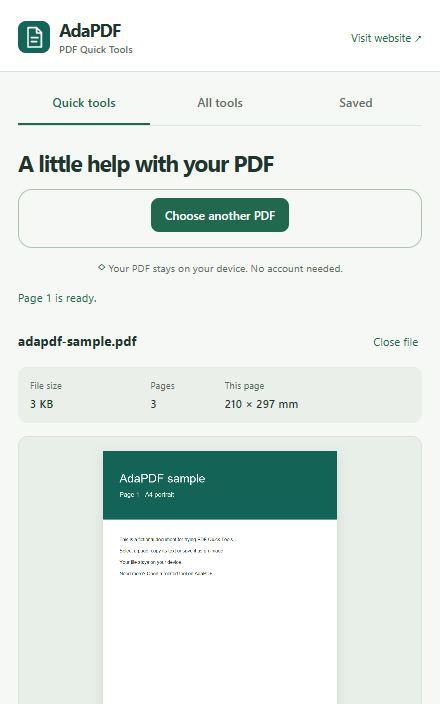
Frequently Asked Questions about AdaPDF tools
What is AdaPDF?
AdaPDF is a free online PDF converter and toolkit that works in your browser. Choose a task to create PDFs from supported documents or images, convert text-based PDFs, or combine and organize existing PDF pages.
Which PDF tool should I use?
Choose your PDF converter by the result you need. Compress a PDF that is too large to upload, use OCR PDF when scanned words cannot be copied, or merge documents into one attachment. PDF to Word offers editable page objects or flowing paragraphs; PDF to Excel gives you table cells to review. Try the relevant sample before using your own file.
Who is AdaPDF for?
It is for students, office workers, and anyone preparing files for an application, review, printout, or share. The tools are best for supported file types and straightforward document tasks; review every converted file when its formatting or data matters.
Is AdaPDF really free?
Yes. All 47 tools are free, with no account or subscription. File and page limits are shown in each tool so you can check whether your document fits before starting.
Do my files get uploaded?
Your documents are processed on your device. Files and HTML code are not uploaded for conversion. See our privacy policy for details about website hosting and analytics.
Can AdaPDF convert scanned PDFs?
Yes. The PDF converter for Word can recognize scanned pages in Flowing text mode; the Excel and CSV tools also offer OCR for scanned tables. Proofread names, amounts and dates against the original. Use OCR PDF when you want a searchable PDF, or JPG to PDF when you only need to assemble photos without recognizing their words.
Will a converted Word or Excel file look exactly like my PDF?
No exact match is guaranteed. PDF to Word offers editable page objects or flowing text with optional OCR; flowing text omits pictures and the original layout. PDF to PowerPoint offers supported editable objects or page images whose contents cannot be edited separately. PDF to Excel and CSV offer OCR for scans and table cells to review. Check fonts, complex artwork, table structure and recognized values before sharing.
Can I use AdaPDF on my phone?
Yes. Open the PDF converter in a modern mobile browser and choose a smaller file first. Large scans can exceed your phone’s memory. Tools that use Print / Save as PDF depend on your browser’s print options; use a desktop if the PDF destination is unavailable.