Save your current changes before switching modes. Original-text editing keeps supported words selectable; annotations let you add new content and correct a scan with OCR.
Edit PDF Online
Make the visible changes your PDF needs.
Edit PDF text where supported, add images and notes, or correct a simple scan with OCR. Preview changes and download a copy locally. Free, with no sign-up.
Turn a project brief into clear feedback.
Add a review label, highlight the deadline, and leave a note beside the budget.
Opens the two-page sample in the editor above. Choose Apply example edits to add these marks.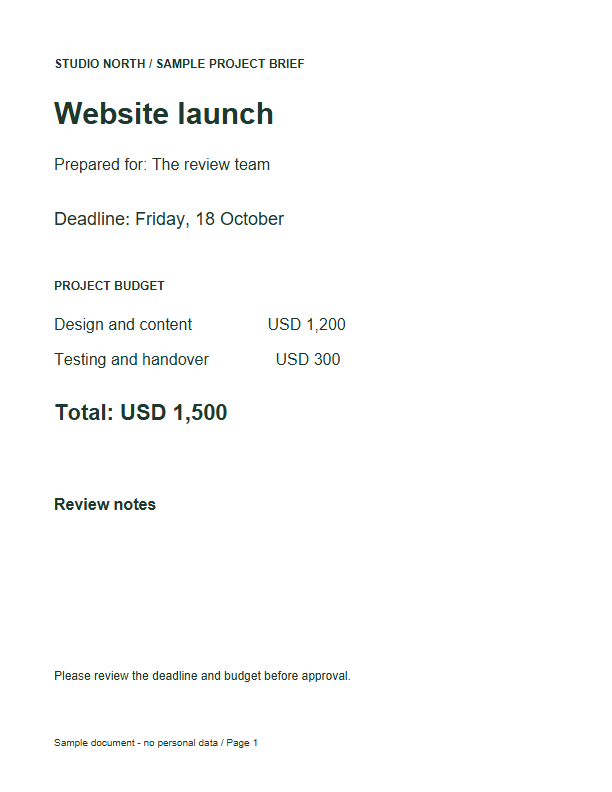
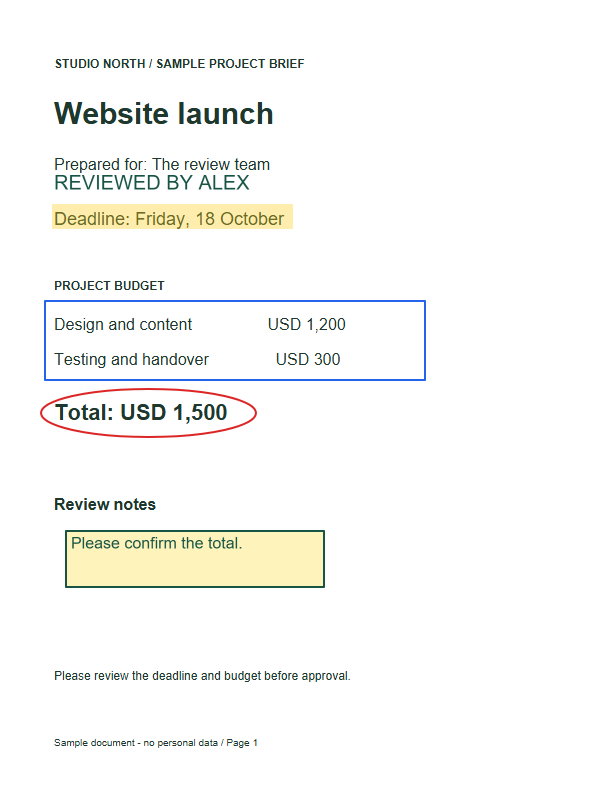
The first page is shown here. Download both copies to compare all pages, including the checklist.
Update a PDF without printing it first
Use this free PDF editor to edit PDF text, add new information or mark up a page. Choose Edit original text for short corrections to selectable PDF text. Pick a page and wording, then enter a replacement using characters available in the original font. The replacement must fit its original space. The edited words stay selectable; unsupported text is left unchanged. For a longer rewrite, use PDF to Word or the original document.
Add a missing date, circle a figure, highlight a deadline or leave a visible comment on a draft. All tools are visible in the toolbar. Select your new text or shape again to change its properties, drag it to a new position or resize it with the handles. Text controls include font, size, color, bold, italic and alignment. The edits remain adjustable while this document is open.
Try the two-page project brief: apply the example edits, select REVIEWED BY ALEX and change the name or font. Move the budget rectangle and resize the total ellipse. To change existing printed words, choose OCR for the current page, check the recognized text boxes and edit one. On a simple light background, a correction such as changing a total can replace the old visible words. Complex backgrounds and recognition errors need manual review.
Your PDF stays in this browser tab. Save a new copy when you are ready. Visual edits and OCR changes are saved as they look in the preview, so changed scan pages cannot be searched afterward and links, forms, bookmarks, and signatures may not carry over. Do not use visual editing to securely remove private information.
Who is this for?
Students annotating handouts, teams reviewing drafts, and people correcting a short line in a clear scanned document. Use a desktop for large PDFs; touch and numeric position controls are available on smaller screens.
Need searchable text? Try OCR PDF. For longer paragraph changes, use PDF to Word. Add a signature with Sign PDF.
Made by AdaPDF. Read how your files stay private.
Choose the edit you need
Scroll sideways to compare all columns.
| Your change | Use | Check before saving |
|---|---|---|
| Correct a short line of selectable text | Edit original text | The replacement fits the existing space and uses supported original-font characters. |
| Add a note or highlight | Add text, Highlight, or Comment | Your marks are in the right place on every page. |
| Correct a short line in a scan | Recognize the page, then edit the line | The replacement fits the background and says what you intended. |
| Rewrite whole paragraphs | PDF to Word, then edit the document | Rebuild any layout that did not carry over. |
For a name and signature on a form, use Sign PDF. To change the author or title shown in file properties, use Edit PDF Metadata. Use Redact PDF to remove marked confidential content; adding a box or replacing a visible word is not secure removal. Keep the original and review your saved edits.
Follow the free PDF editing guide for a step-by-step example.
How to use Edit PDF
- Choose an unlocked PDF up to 50 MB and 100 pages, or select Try sample PDF to explore a two-page example.
- For a short correction to selectable words, choose Edit original text. To add new information, choose text, images, shapes, notes or highlights. Select a new edit to change its words, style, position or size. Undo and Redo work across pages.
- For printed words in a scan, choose the document language and run OCR on the current page. Select a recognized line and correct it. Check the font substitution and background color; recognition alone does not change the exported page.
- Select Save edited PDF, inspect the preview, and download it. You can continue editing in this tab and save again after a change. Reopening the download does not restore each edit.
Edit PDF: frequently asked questions
How do I add an image or logo to a PDF?
Choose Add image and select a JPG or PNG up to 10 MB and 16 megapixels. Move it into place, resize it with the handles or size fields, and keep image proportions enabled to avoid stretching. Transparent PNGs keep their transparency. You can change opacity, duplicate, delete, undo and redo while the document stays open. Images are reduced to at most 4 megapixels for editing; check the saved PDF before sharing.
How can I edit a PDF online for free without signing up?
Choose your PDF, add text, a shape, a note, or a highlight, then select Save edited PDF and Download PDF. Editing and downloading are free, with no account, payment, or credit card required. Try the sample before opening your own document.
Can I change or delete existing text in a PDF?
Choose Edit original text to correct supported selectable text using its existing font and available characters. The replacement must fit its original width. For a scan, use the annotation mode and OCR to make a visible correction on a simple background. Neither mode securely removes private information; use Redact PDF for that task. PDF to Word is more suitable for longer rewrites.
How do I add text or a date to a PDF without printing it?
Choose Add text and click the page, then enter your words. Choose Select to return later and change its font, size, style, color, or position. Your original file stays unchanged.
How do I draw a rectangle or circle and highlight a PDF?
Choose Rectangle or Ellipse and drag across the area. Choose Highlighter to mark an area, then Select to change its color, transparency, size, or position while the PDF is open.
Can I add comments to a PDF that other people can reply to?
Comment adds a visible note whose words, color, and position you can change while the PDF is open. The download keeps the note but does not include replies or a conversation thread.
Can I edit a scanned PDF or an image-only document?
Yes. Choose the matching language and run OCR on the current page. Check names and numbers against the scan. Simple light backgrounds work best; photos, patterned paper, and table borders can need a different editor. Use OCR PDF when you only need searchable text.
Is it safe to edit a PDF with private information here?
Your PDF stays on your device while you edit it. Keep the original: saving changes the copy, and existing certificate signatures will no longer be valid.
Can OCR keep the original font and page layout?
You can choose a font, size, and color, but an exact font match is not guaranteed. Scans do not contain the original font details. Check line wrapping and every changed area in the output preview.
Can I reopen my download and keep editing the same changes?
Editing choices are available only while this document stays open in this tab. Reopening a download does not restore each individual edit, but you can add new marks or run OCR again. On mobile, use the edit list and position controls when handles are hard to drag.